A reaction video on iPhone takes three parts: the clip you react to, a recording of your face and voice, and an editor that puts your face in a corner on top of the clip. You can do it for free with the screen recorder and iMovie, or in one app that records your reaction over a screen recording, like OnAir.
What you need before you start
- The clip. Either a video you shot or saved, or something playing on your screen that you capture with a screen recording.
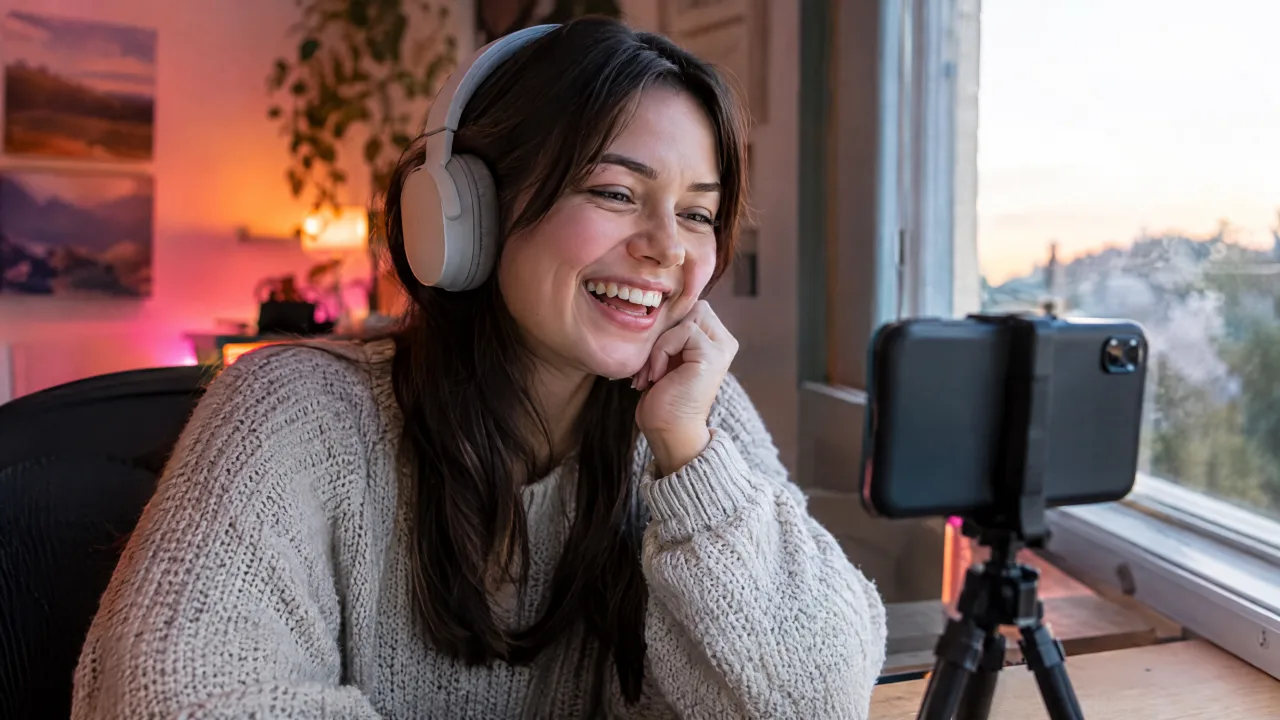
- Your reaction. Front camera plus microphone. A quiet room and light in front of you, not behind you, matter more than the phone model.
- An overlay editor. Something that can stack two videos and shrink one into a corner (picture in picture).
Check that the app you want to react to allows screen recording. Apple says some apps don't allow their content to be recorded, and streaming services with copy protection usually record as a black screen (Apple Support).
Method 1: screen recording + iMovie (free)
- Record the clip: open Control Center, start Screen Recording, play the video, stop the recording. It lands in Photos.
- Record your reaction separately with the Camera app while you watch the clip again. Start both at the same moment, or clap once on camera so you can line them up later.
- Open iMovie, create a Movie project and add the screen recording as the main clip.
- Tap +, pick your reaction video, tap the ... button and choose Picture in Picture. iMovie places it in a corner on top of the clip.
- Drag and pinch the small window into position, trim both clips so they start together, and export.
This works, but it is two recordings and a manual sync. If your reaction drifts out of time with the clip, the jokes land a second late.
Method 2: record your reaction over the clip in OnAir
OnAir is our app, built for this exact job. You react while the clip plays, so the timing is right the first time:
- Start a screen recording from OnAir and play what you want to react to (a game, a TikTok, a YouTube video, an app).
- Stop the recording and open it in OnAir.
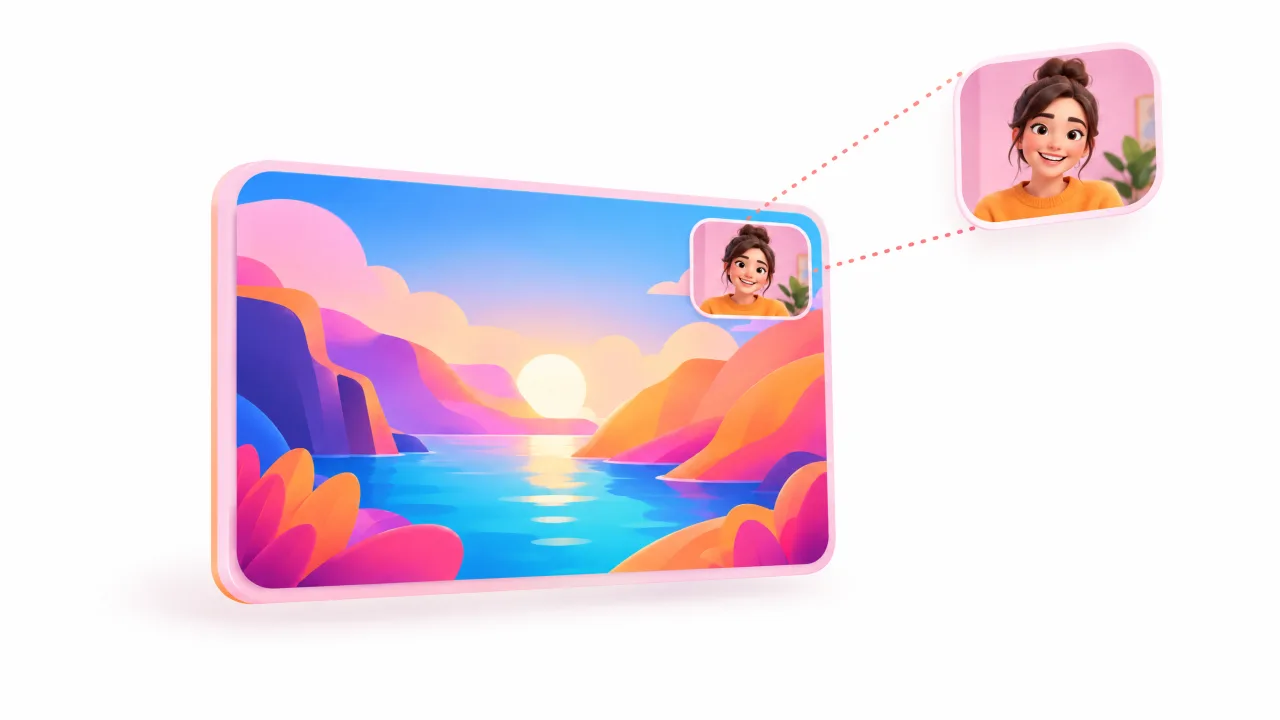
- Tap to add a reaction. The recording plays back while the front camera and the mic record you on top.
- Turn the camera or the microphone off if you only want your face or only your voice, and drag the face cam window where it doesn't hide the action.
- Trim the start and the end, then save to Photos or share straight to YouTube, TikTok or Instagram.
Being honest about what it does today: OnAir adds reactions to recordings you make in the app. Picking any video from Photos to react to is not there yet, so for a clip saved on your phone, use Method 1 or play the clip on screen and record it.
Tips that make reaction videos watchable
- Face cam in a corner, not the middle. Viewers came for the clip. Top corner works for most videos; bottom corner for games with a HUD at the top.
- Light your face. A window or a lamp in front of you beats any filter.
- Headphones help. They keep the clip's sound out of your microphone, so it isn't recorded twice with an echo.
- Pause and talk. Reactions that add opinion, context or a breakdown are more interesting, and they matter for copyright (below).
- Vertical for Shorts and TikTok. Record the clip in portrait if the final video is 9:16.
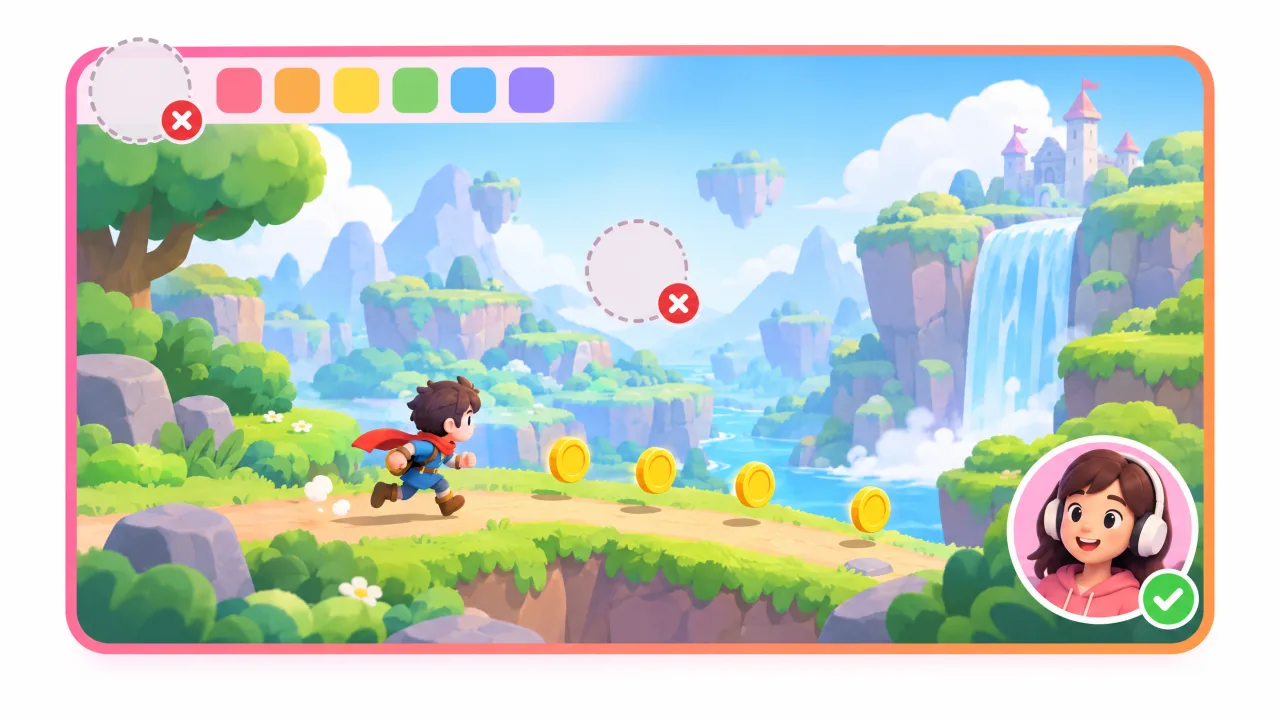
Can you post a reaction to someone else's video?
There is no simple yes. On YouTube, reusing someone's video can trigger a Content ID claim or a copyright strike, and YouTube says fair use is decided case by case, with commentary and criticism weighing in its favour and just re-uploading weighing against it (YouTube Help). Practical rules: react to a part of the clip rather than all of it, talk more than you replay, and check the creator's reuse policy. This is not legal advice.
Which way to choose
| Situation | Best way |
|---|---|
| Clip is saved in Photos, one-off video | Screen recording + iMovie Picture in Picture |
| Reacting to a game, app or something on screen | OnAir: record, then add the face cam reaction |
| You only want voice commentary | OnAir with the camera off, or iMovie voiceover |
| Regular reaction channel | One app for record, react, trim and share saves the sync work |
Related: how to screen record on iPhone and what to do when a screen recording has no sound.