To screen record on iPhone, open Control Center (swipe down from the top-right corner), tap the Screen Recording button and wait for the three-second countdown. To stop, tap the red indicator at the top of the screen and then Stop. The video is saved to the Photos app. If the button isn't in Control Center, add it first; the steps are below.
Step 1: add Screen Recording to Control Center
The button isn't always there out of the box. How you add it depends on your iOS version.
iOS 18 and later (including iOS 26)
- Swipe down from the top-right corner to open Control Center.
- Touch and hold an empty part of Control Center, or tap the + in the top-left corner.
- Tap Add a Control, search for Screen Recording and tap it.
- Tap an empty area to finish. You can drag the button where you like.
iOS 17 and earlier
- Open Settings > Control Center.
- Find Screen Recording in the list and tap the green + next to it.
Apple's guide has the current wording for your exact version (Apple Support).
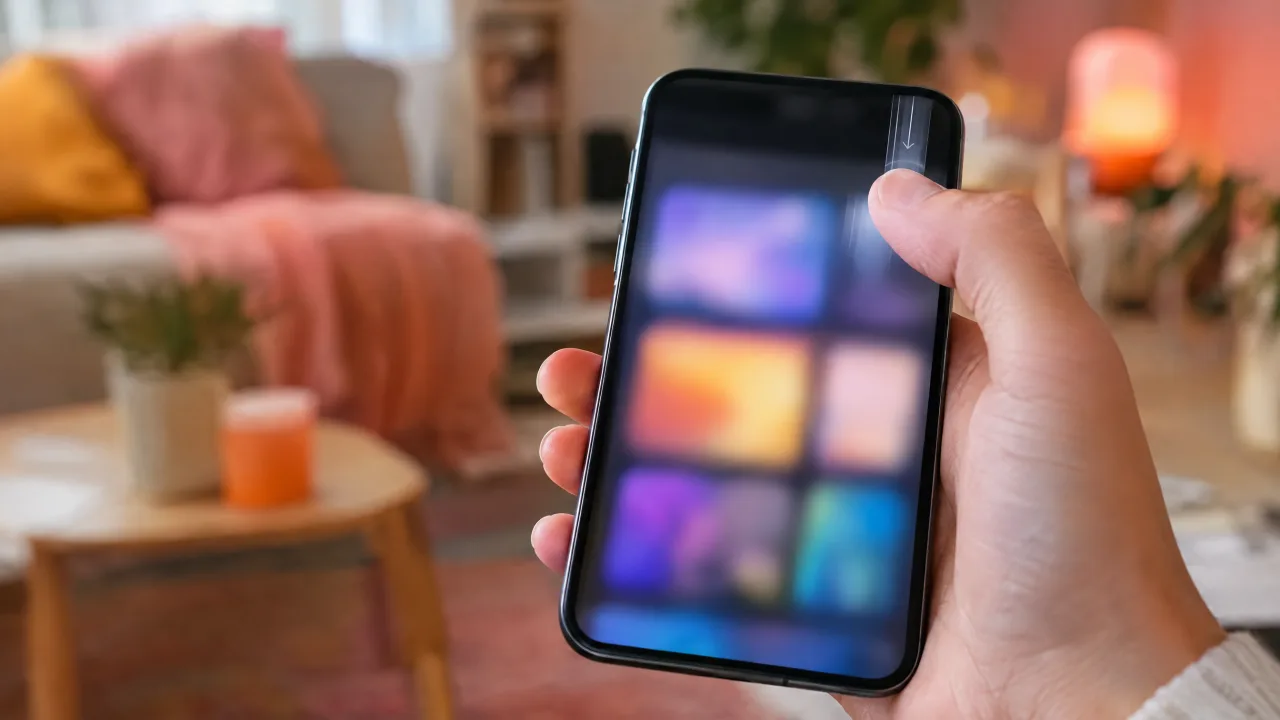
Step 2: start recording (with or without sound)
- Open Control Center.
- For a recording without your voice, just tap the Screen Recording button.
- For a recording with your voice, touch and hold the button, tap Microphone to turn it on, then tap Start Recording.
- After the three-second countdown, close Control Center and do what you want to record.
The app's own sound (a game, a video, a tutorial) is recorded whenever the app allows it. The microphone adds your voice and the room on top. If you hear nothing in the result, see screen recording has no sound.
Step 3: stop the recording
- iPhone with Dynamic Island (iPhone 14 Pro and later, all iPhone 15, 16 and 17 models): tap the red recording indicator in the Dynamic Island, then Stop.
- Other iPhones: tap the red timer in the top-left corner, then Stop.
- Or open Control Center and tap the Screen Recording button again.
Step 4: find your screen recording
Recordings are saved to Photos. In iOS 18 and later, open Collections > Media Types > Screen Recordings; the newest one is also at the bottom of your library. From there you can trim it with Edit or share it.
Screen recording on specific iPhone models
The steps are the same on every iPhone that runs iOS 18 or iOS 26. What changes is where you stop the recording:
| iPhone | How to stop |
|---|---|
| iPhone 17, 17 Pro, 17 Pro Max, iPhone Air | Red indicator in the Dynamic Island |
| iPhone 16 and 16e, iPhone 15, iPhone 14 Pro | Red indicator in the Dynamic Island (16e: red timer at the top) |
| iPhone 14, 13, 12, 11 | Red timer at the top left |
| iPhone SE, iPhone 8 and older | Red bar or timer at the top |
On iPad the steps are the same: Control Center opens from the top-right corner, and the button works the same way.
Things screen recording can't do
- Calls. FaceTime and phone call audio is not recorded. Details: can you screen record FaceTime.
- Protected video. Most paid streaming apps record black.
- Screen mirroring. You can't record and mirror with AirPlay at the same time.
- Your face. The built-in recorder captures the screen only. There's no camera bubble.
Record your screen with your face (face cam)
For tutorials, gameplay and reactions, viewers like to see the person talking. iOS can't add a camera to a screen recording, so you need an app:
- In OnAir (our app), start a screen recording and do what you want to show.
- Stop it, open the recording and add a reaction: the recording plays while the front camera and microphone record you on top.
- Drag the face cam where it doesn't cover the action, trim, and save or share.
The full walkthrough is in how to make a reaction video on iPhone.