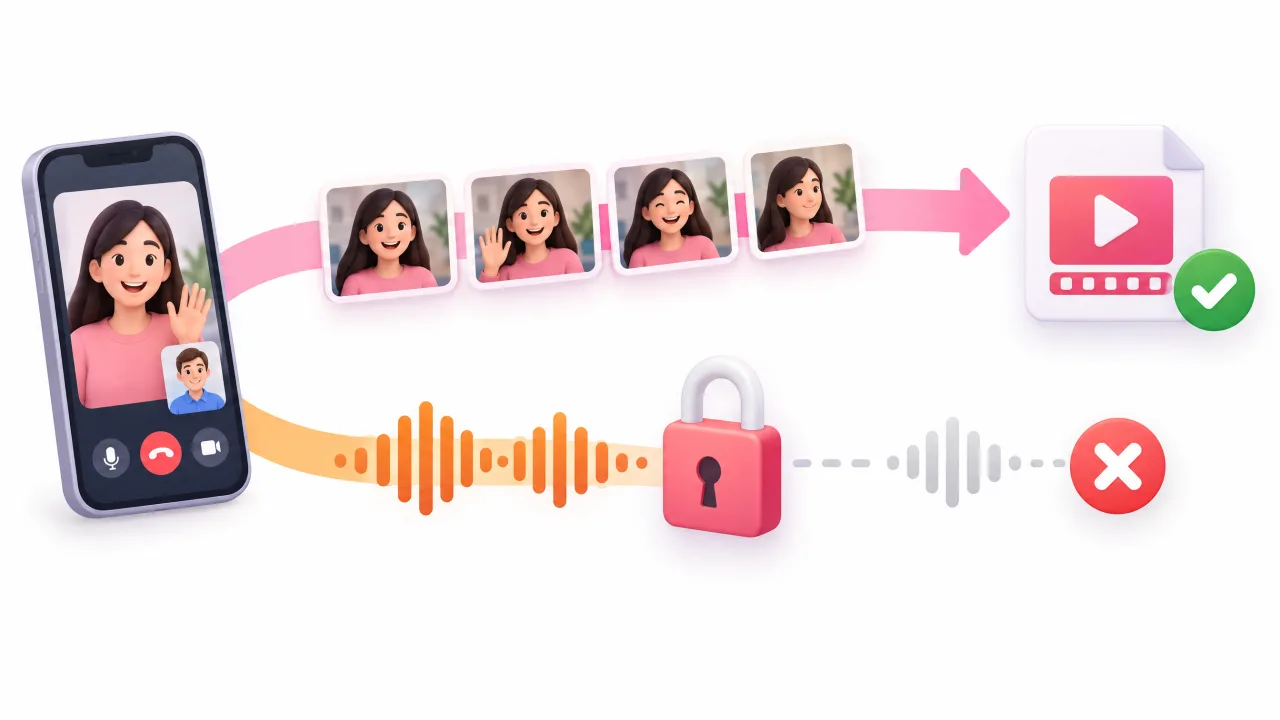
Yes, you can start a screen recording during a FaceTime call, and the video of the call is recorded. The catch is sound: iOS mutes the other person's audio in the recording, so most FaceTime screen recordings come out silent or with only your own voice. The other person is not notified by FaceTime, which is exactly why you should ask them first.
What a FaceTime screen recording captures
| Part of the call | Recorded by Screen Recording? |
|---|---|
| Video of both people | Yes |
| The other person's voice | Usually no: iOS keeps call audio out of screen recordings |
| Your voice | Only if the screen recording microphone is on, and not on every iOS version |
| Captions, reactions, SharePlay content | The video part, yes; protected streaming content records black |
Apple's own guide says that some apps don't allow their content to be recorded (Apple Support). Calls are the most common case people run into, and the same applies to WhatsApp, Zoom and Teams calls on iPhone.
Does FaceTime notify the other person?
FaceTime does not show the other person an alert when you start a screen recording. It does notify them when you take a FaceTime Live Photo. Not being notified does not make recording fine: in many places recording a conversation needs the consent of everyone in it, and the rules differ by country and state. Ask before you record. This is not legal advice.
How to record a FaceTime call with audio, honestly
There is no setting or app that makes iOS put the other person's FaceTime audio into a screen recording. Apps that promise "secret" call recording either don't work or record something else. These are the options that do work:
- Use iPhone call recording for voice calls. In iOS 18.1 and later, during a phone call you can tap the More button and then Call Recording. Everyone on the call hears an announcement that it is being recorded, and the recording is saved in Notes. Apple says it is available only in some regions and languages, and asks you to get consent first (Apple Support).
- Record on a second device. With the other person's agreement, put the call on speaker and record with another phone or a computer. The quality is lower, but you get both voices.
- Let the other person record their side. For interviews and podcasts, each person records their own voice and you combine the files later. This is how most remote podcasts get clean audio.
- Use a meeting app's own recorder. Zoom, Teams and Google Meet have built-in cloud or host recording that notifies everyone and keeps the audio.
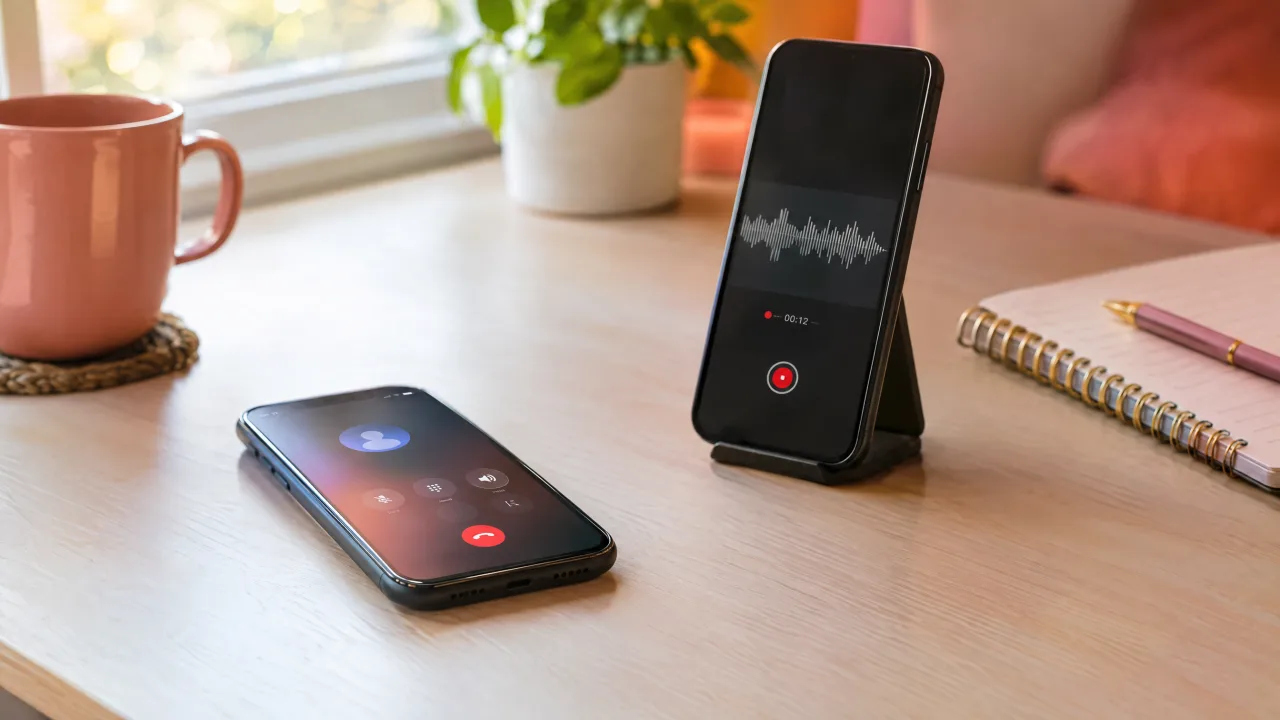
Steps: screen record a FaceTime call (video only)
- Open Control Center: swipe down from the top-right corner of the screen.
- Touch and hold the Screen Recording button, turn on Microphone if you want your voice, and tap Start Recording.
- Wait for the three-second countdown, then switch to FaceTime.
- Stop the recording from the red indicator at the top of the screen. The video is saved in Photos.
If the Screen Recording button is missing, add it first: how to screen record on iPhone shows the Control Center steps for iOS 18 and earlier versions.
Why the recording has no sound, and what to try
If the FaceTime recording is completely silent, including your voice, check that the microphone toggle in the Screen Recording menu was on before you started. The rest of the troubleshooting list is in screen recording has no sound on iPhone. Nothing on that list brings back the other person's call audio, because iOS blocks it on purpose.
Where OnAir fits
OnAir doesn't record calls and can't get around the iOS audio block. It is useful for the next step: when you want to talk over a recording, react to it on camera or add a voice-over. Record the screen, then add your face cam and your voice on top of the recording, trim it and share it.