Face cam reaction
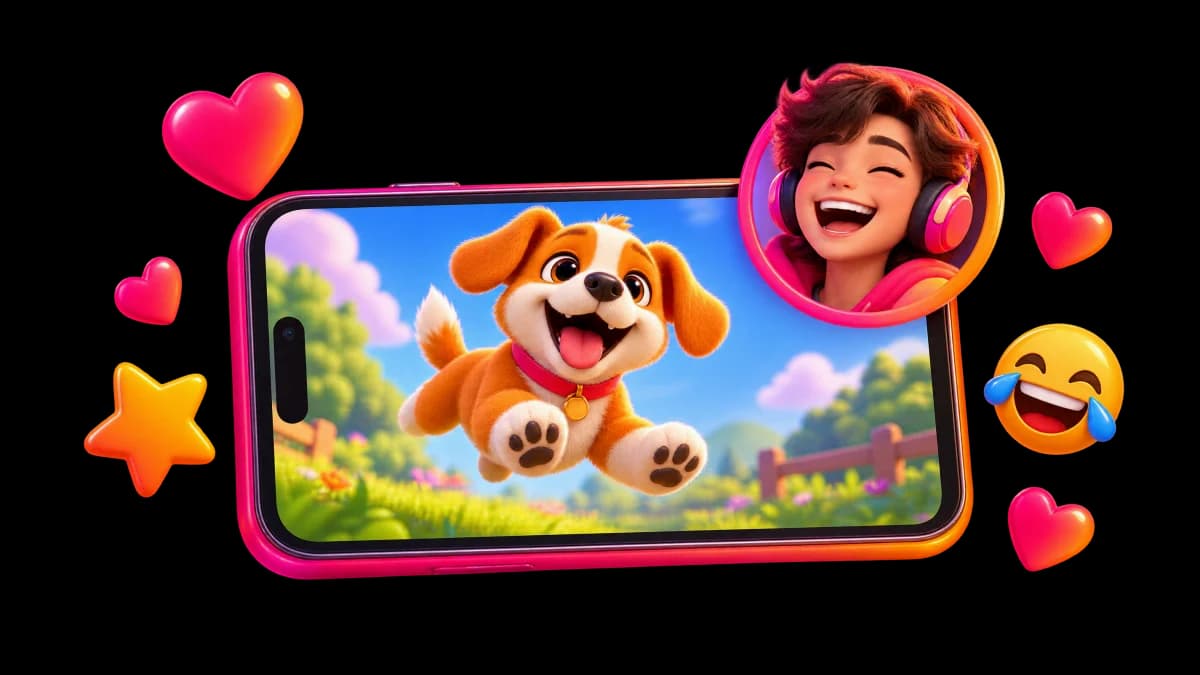
Watch your recording back and react on top of it with the front camera and mic.
 OnAir
OnAirOnAir records games, apps and videos on your iPhone with sound, then puts your face cam and voice on top. Trim it and share it in a minute.
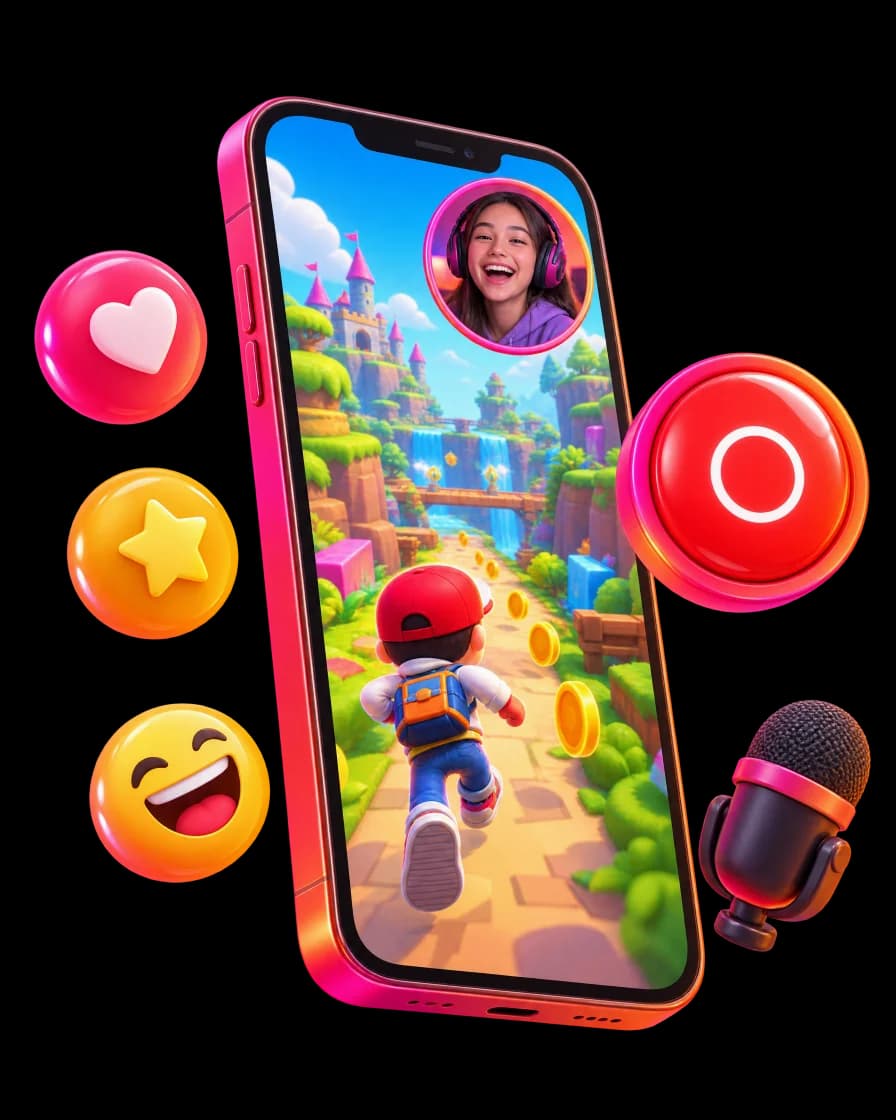
Inside the app
Record the screen, react on camera, then trim and share — straight from your iPhone.
Features
Watch your recording back and react on top of it with the front camera and mic.
Games, apps, tutorials and videos, with the app's sound and your microphone.

Drag the face cam out of the way. Turn the camera or the mic off for voice-only or face-only.
Cut the start and the end, save to Photos or share to YouTube, TikTok and Instagram.

How it works

Start a screen recording in OnAir and play your game, app or video.
Open the recording and tap to react. It plays back while the camera records you.

Trim it, save it to Photos or post it straight to your channel.
Blog
Screen recording, reaction videos and making videos on iPhone and iPad.
Made for
React to TikToks, trailers and clips with your face in the corner.

Record a match, then add your commentary and reactions on top.
Show how something works on iPhone and explain it on camera.

Turn the camera off and talk over your recording.
OnAir keeps recordings on your iPhone. Nothing is uploaded unless you share it yourself.
FAQ
OnAir is free to download and record with. Some features are part of an optional subscription inside the app; the App Store page lists the current prices.
Yes: the sound of the app you record, when that app allows it, plus your microphone if you turn it on.
No. iOS mutes call audio in every screen recording, and no app can get around that. You can still react to or talk over other recordings.
Yes, OnAir works on iPhone and iPad.
Not yet. Today you add reactions to recordings made in OnAir: play the video on screen, record it, then react.