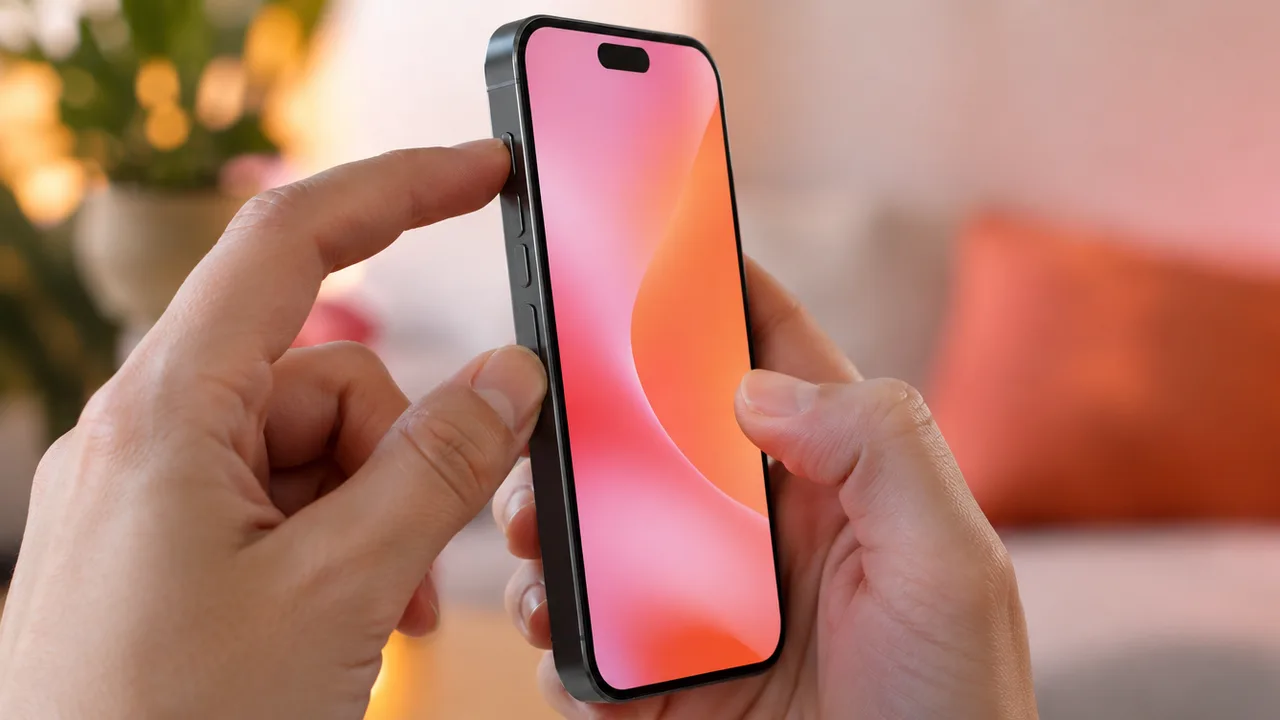
To take a screenshot on iPhone, quickly press and release the side button and the volume up button at the same time. On an iPhone with a Home button (iPhone SE), press the Home button and the side button together. The screenshot is saved to the Photos app. Tap the preview to crop it, mark it up or capture a whole web page.
The buttons on every iPhone model
| iPhone | Buttons to press together |
|---|---|
| Every iPhone without a Home button: iPhone X and later, including iPhone 11 to 17, iPhone Air, iPhone 18 Pro and iPhone Duo | Side button + volume up |
| iPhone with a Home button: iPhone SE (2nd and 3rd generation), iPhone 8 and earlier | Home button + side button |
Press both briefly and let go. If you hold them, you get the power-off screen or Siri instead. The combination comes from Apple's guide (Apple Support).
What to do with the screenshot right away
In recent iOS versions the screenshot opens full screen right after you take it. From there you can:
- Crop: drag the handles.
- Mark up: tap the Markup button to draw, highlight or add text.
- Share or copy: tap Share.
- Save or delete: tap Done and choose to save to Photos or delete.
If you prefer the old small thumbnail in the bottom-left corner, go to Settings > General > Screen Capture and turn off Full-Screen Previews. Thumbnail screenshots save automatically when the preview slides away (Apple Support).
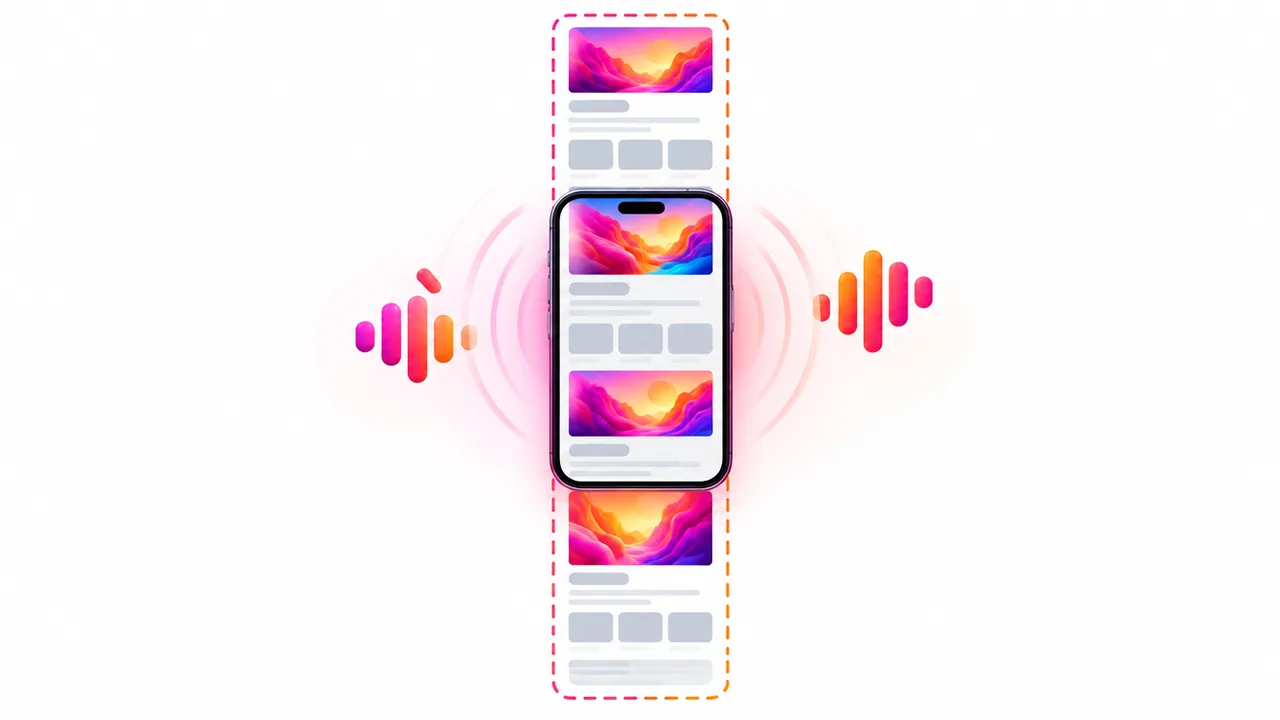
Full-page (scrolling) screenshot
To capture a whole web page, not just what fits on the screen:
- Take a screenshot in Safari as usual.
- Tap the preview, then tap Full Page at the top.
- Drag the strip on the right to see the whole page; tap Crop to keep only part of it.
- Tap Done and pick how to save it. A full page is often saved as a PDF to the Files app rather than as a picture in Photos, so check the options you're offered.
Full Page appears in Safari and in some other apps that show long documents. Most apps (chats, social feeds) don't offer it; there you need several screenshots, or a screen recording while you scroll.
How to screenshot without the buttons
Broken buttons, a thick case or one hand busy? Three built-in ways:
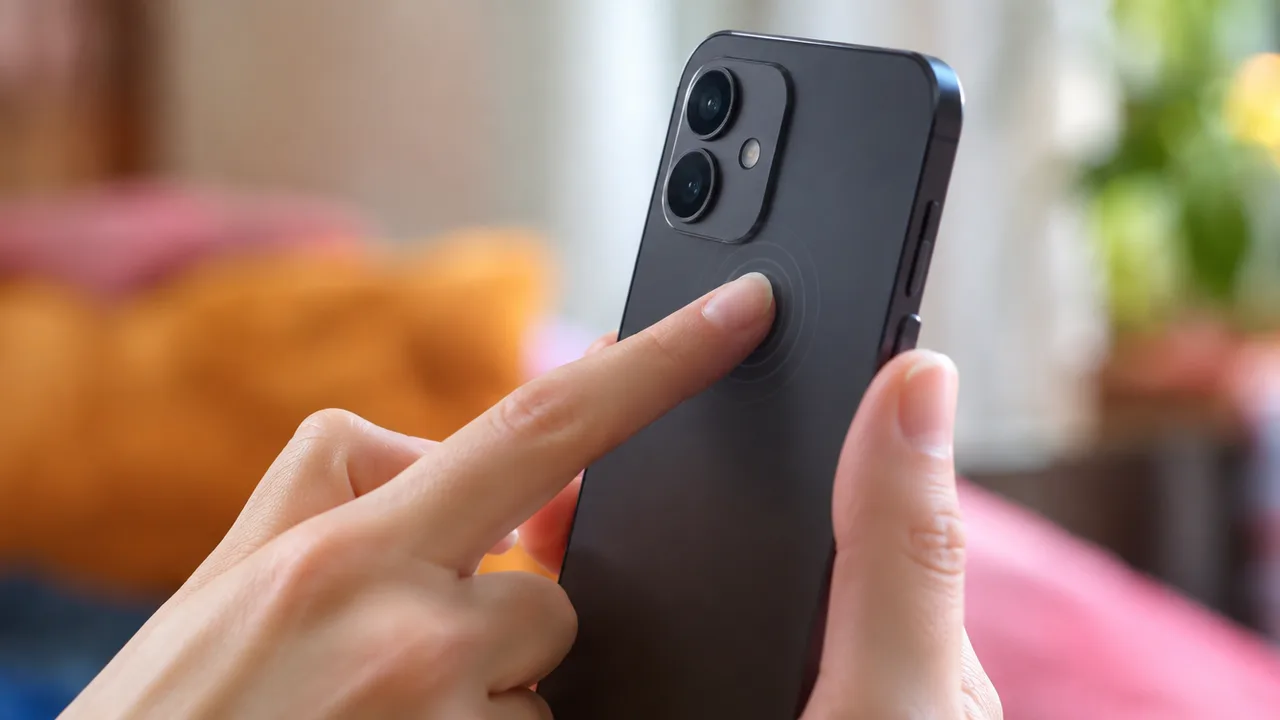
- Back Tap: go to Settings > Accessibility > Touch > Back Tap, choose Double Tap or Triple Tap, then Screenshot. Now tapping the back of the iPhone takes a screenshot (Apple Support).
- AssistiveTouch: turn it on in Settings > Accessibility > Touch > AssistiveTouch and add Screenshot to its menu; a floating button then takes screenshots with one tap.
- Siri: say "Take a screenshot".
Where screenshots go
Screenshots are saved in Photos. To see only screenshots, tap Collections, scroll to Media Types and tap Screenshots. A full-page capture saved as a PDF is in the Files app instead.
Format: in Settings > General > Screen Capture you can choose SDR (screenshots are PNG files, best for sharing) or HDR (HEIF files with more brightness and color, which need an HDR screen to look right).
Screenshot on iPad
On iPad with Face ID, press the top button and a volume button together; on iPad with a Home button, press the Home button and the top button. With Apple Pencil, swipe up diagonally from a bottom corner of the screen (Apple Support).
Screenshot not working?
- You held the buttons too long. Press and release quickly, at the same time.
- Nothing is saved. Check free storage in Settings > General > iPhone Storage.
- The screenshot is black. Streaming apps and some banking apps block screen capture of protected content.
- The buttons are broken. Use Back Tap or AssistiveTouch from above.
Need a video instead of a screenshot?
When one picture isn't enough (a bug, a tutorial, a game moment), record the screen instead: how to screen record on iPhone covers the Control Center button and recording with sound. To add your face and voice on top of that recording, OnAir, our app, records the screen and then lets you react on camera over it.